AD Recon with Azure AD
Collecting information in Entra ID with AzureADRecon and hunting with Microsoft Sentinel!

AzureADRecon
Note: The AzureADRecon tool is provided by Prashant Mahajan (@prashant3535), thanks for that!
https://github.com/adrecon/AzureADRecon
Installing:
Download the tool, the easiest way is to save the .zip file right away.
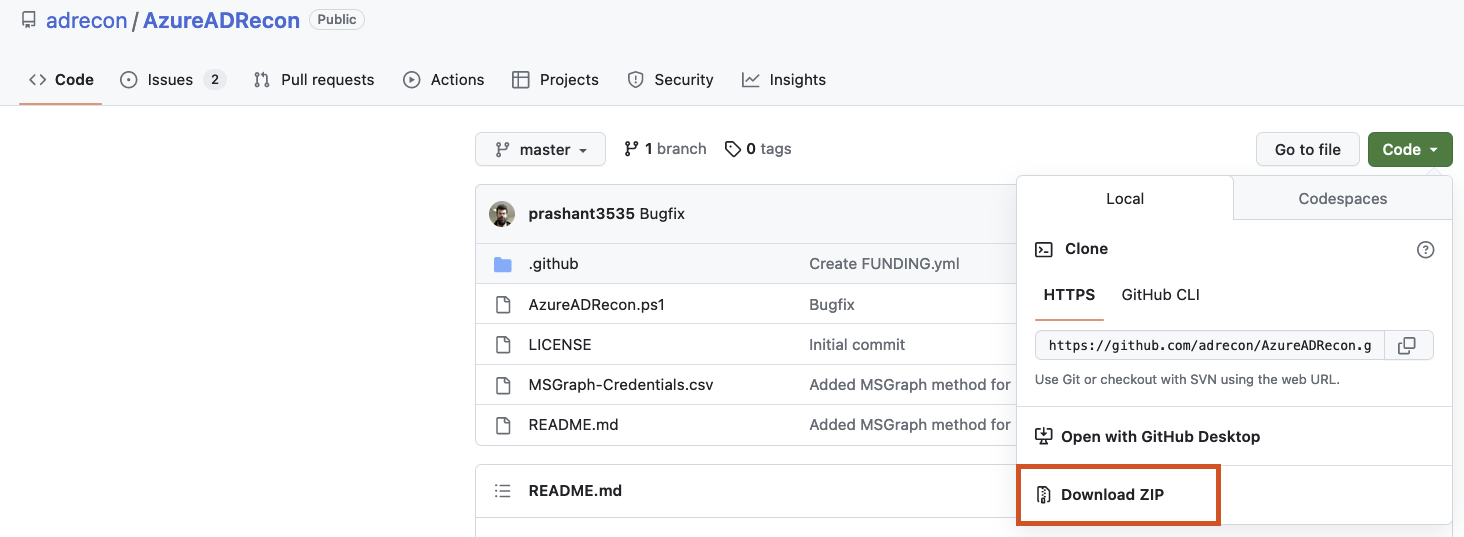
Note: Attention: It is possible that the antimalware program reacts during the download
If you have git installed, you can start by cloning the repository:
git clone https://github.com/adrecon/AzureADRecon.git
If you downloaded the tool using a zip file, extract the zip file and place it in a location that you can easily find again. If you cloned the repository, a folder was created directly. Now launch PowerShell or Windows Terminal, whichever you prefer, and navigate to the extract/clone folder.
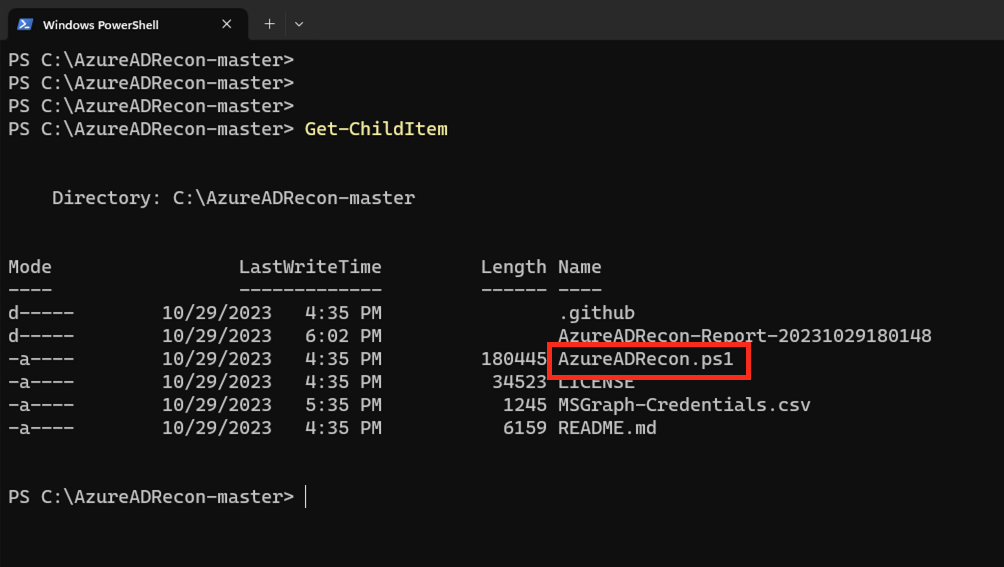
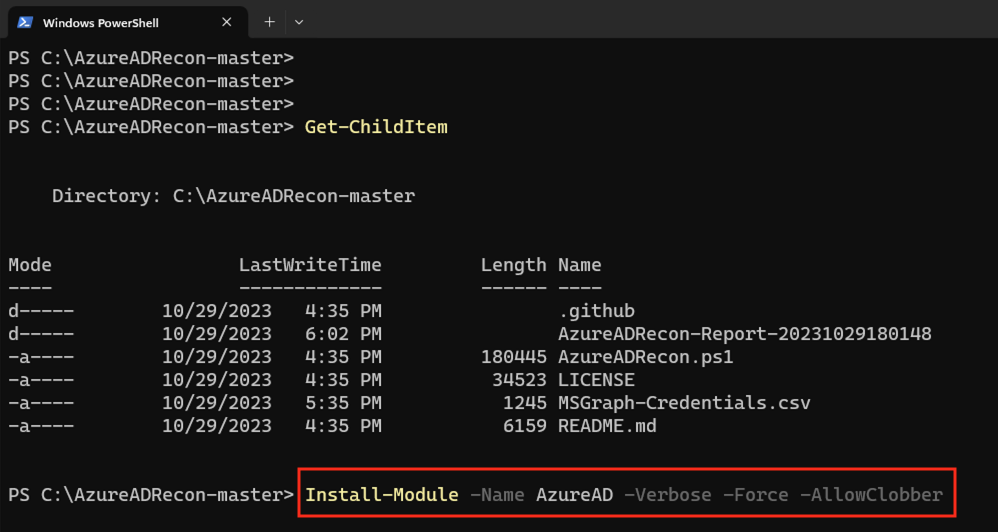
In order to get started we need one more prerequisite, in my case the PowerShell AzureAD module. However, you are welcome to work with the Microsoft Graph, but this requires additional preparations afterwards.
1
Install-Module AzureAD -Verbose -Force -Allowclobber
Don’t forget we need to adjust the execution policy in PowerShell!
1
Set-ExecutionPolicy -ExecutionPolicy Unrestricted -Scope CurrentUser
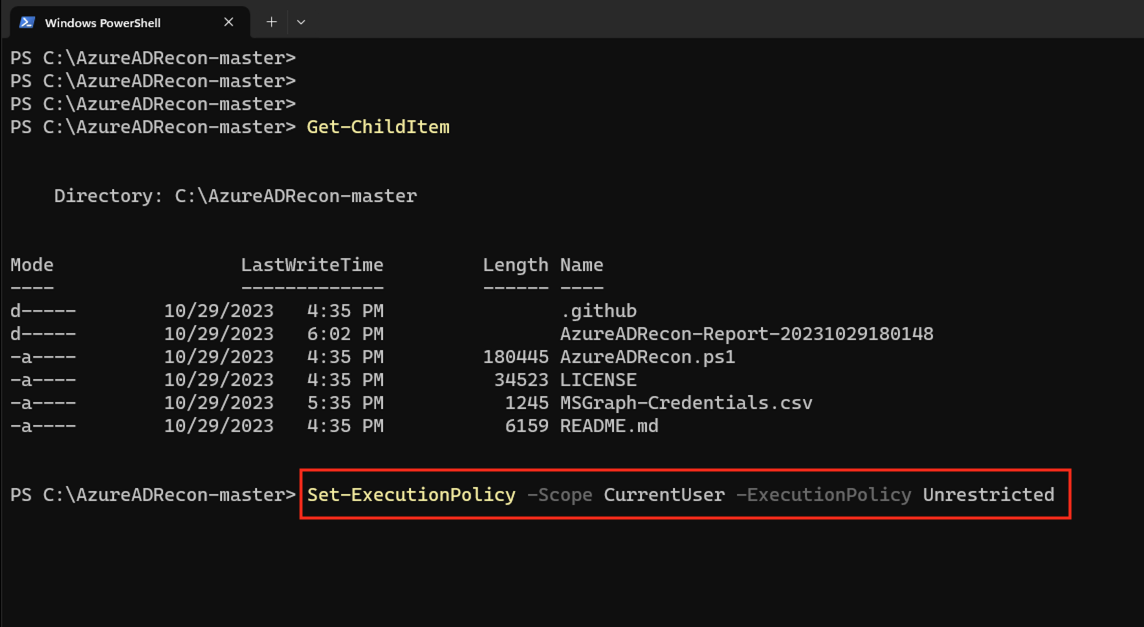
Note: In order to work with this tool, you need to work with an account that has sufficient rights in Entra ID.
To run AzureADRecon (will prompt for credentials)
1
PS C:\AzureADRecon-master> .\AzureADRecon.ps1
or
1
2
3
4
PS C:\AzureADRecon-master> $username = "your user principal name"
PS C:\AzureADRecon-master> $passwd = ConvertTo-SecureString "your password" -AsPlainText -Force
PS C:\AzureADRecon-master> $creds = New-Object System.Management.Automation.PSCredential ($username, $passwd)
PS C:\AzureADRecon-master> .\AzureADRecon.ps1 -Credential $creds
Note: To get the report as a spreadsheet, Excel must be installed on the system.
The report is created in the same folder
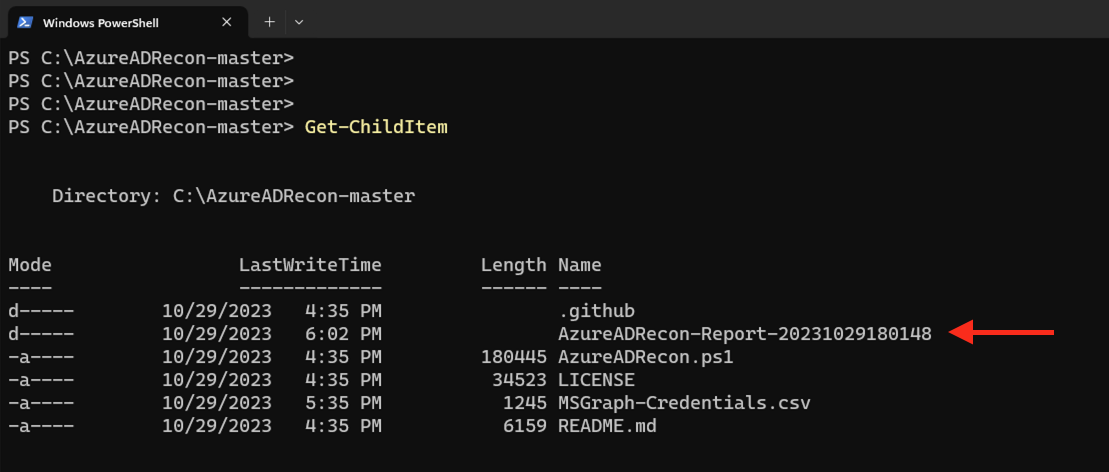
Now open the report and start the investigation and analysis
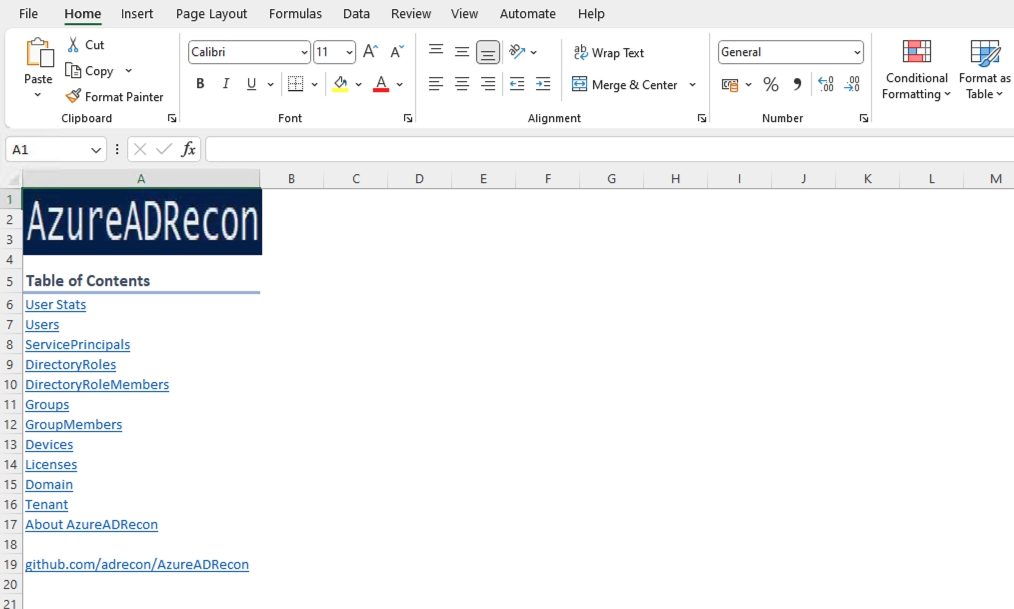
User Stats 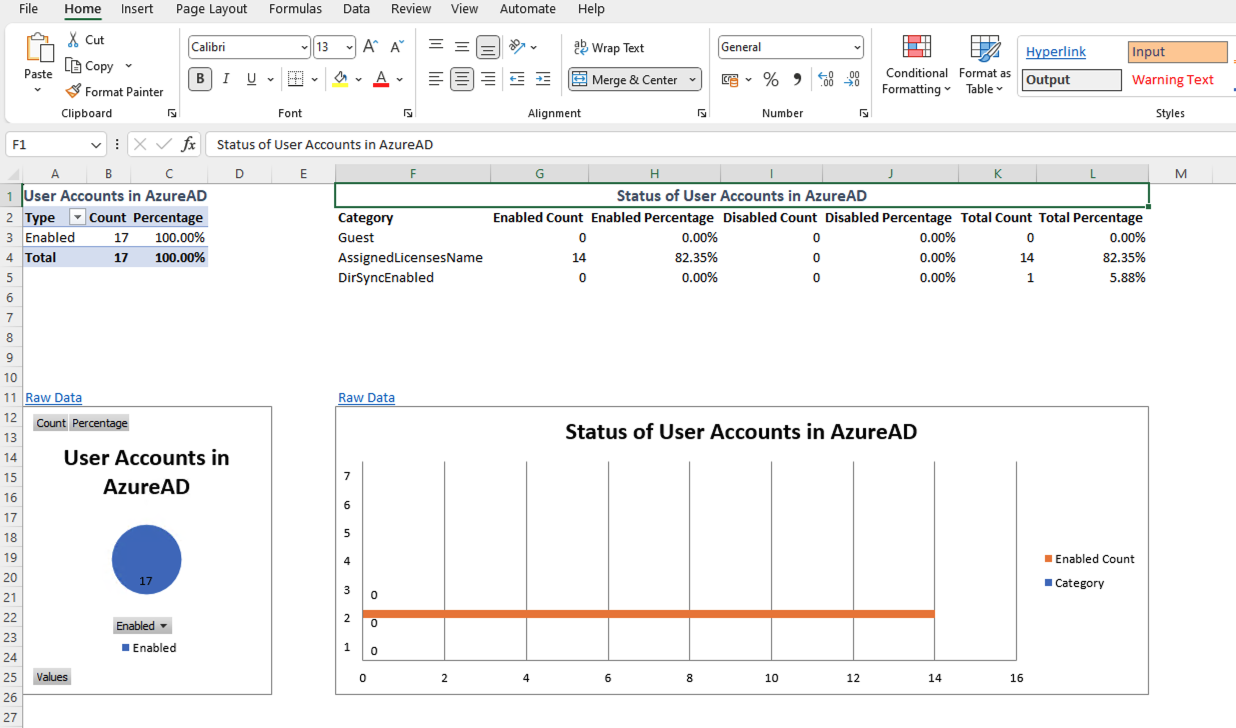
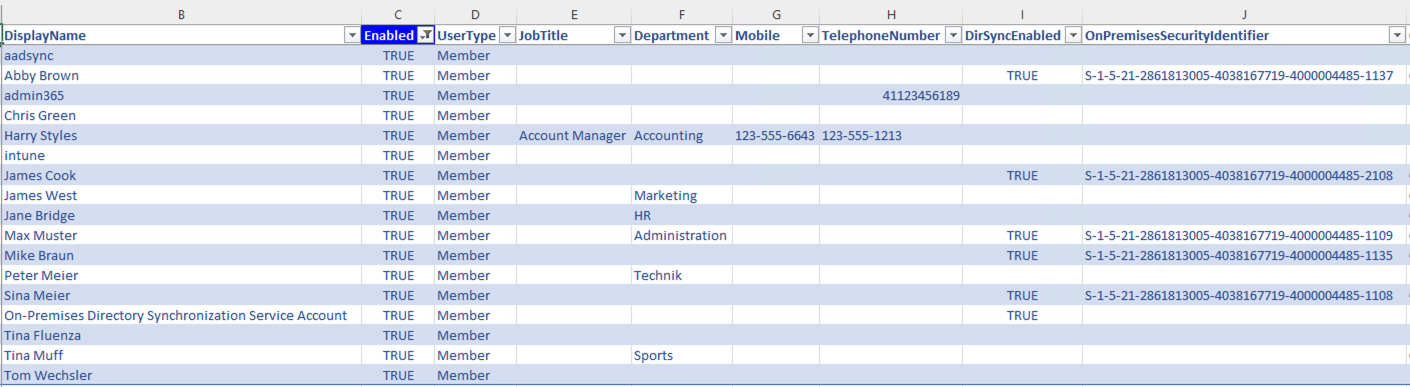
Users
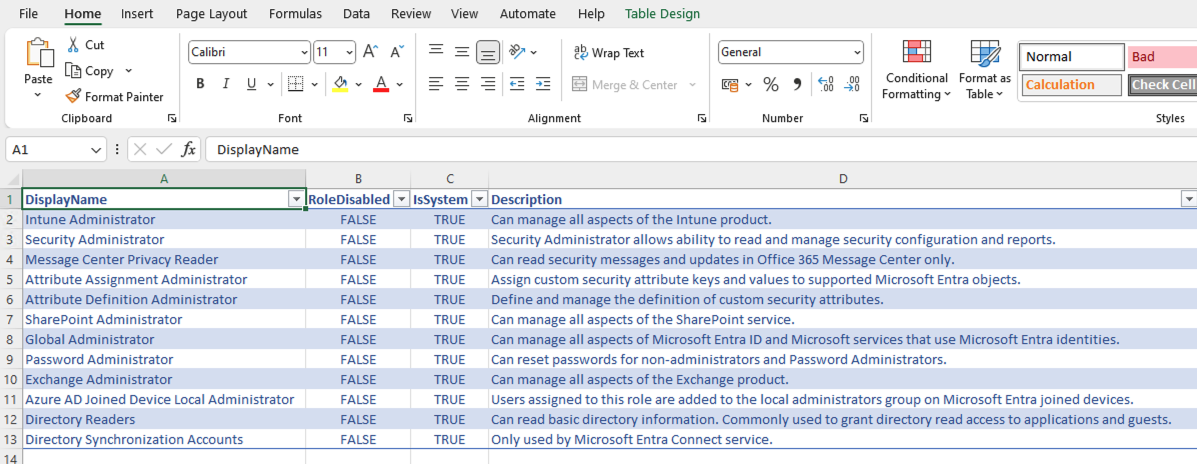
Directory Roles
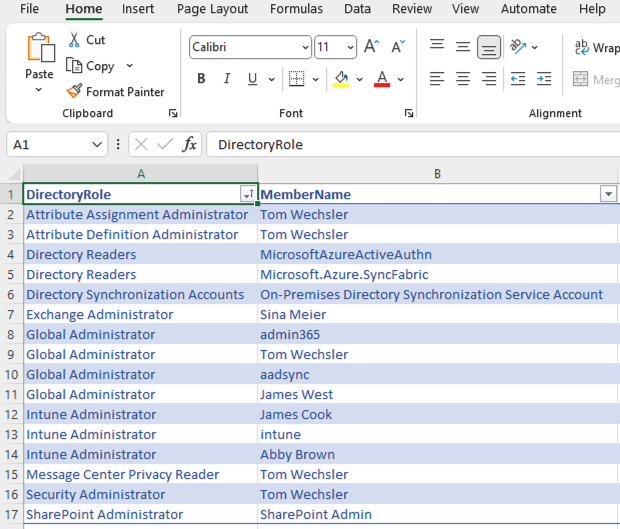
Directory Roles Members
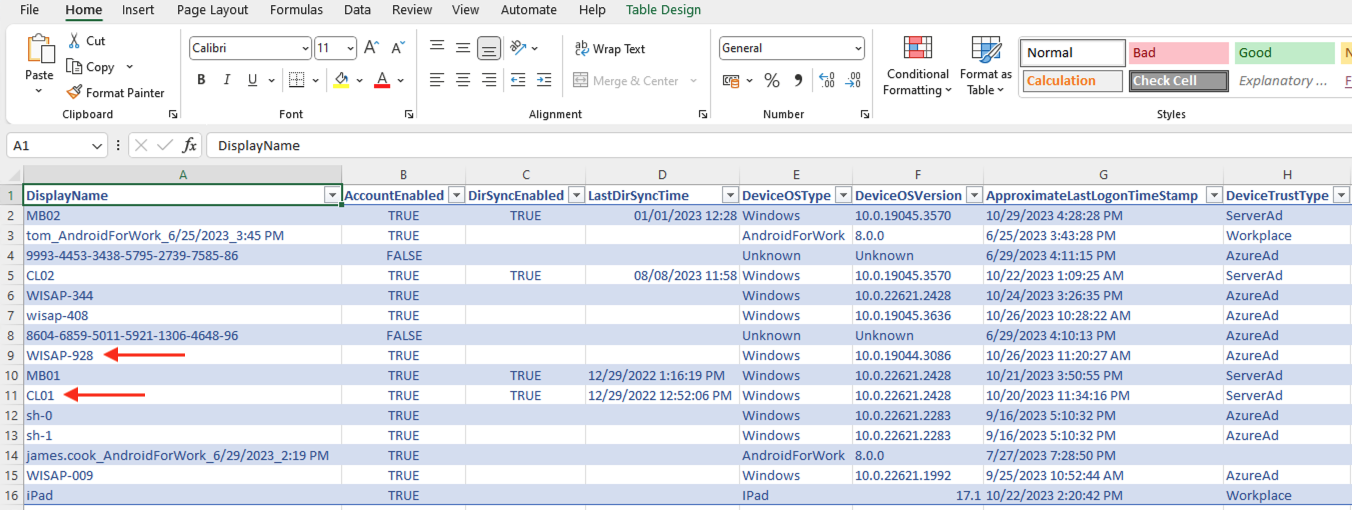
Devices
Hunting with Microsoft Sentinel
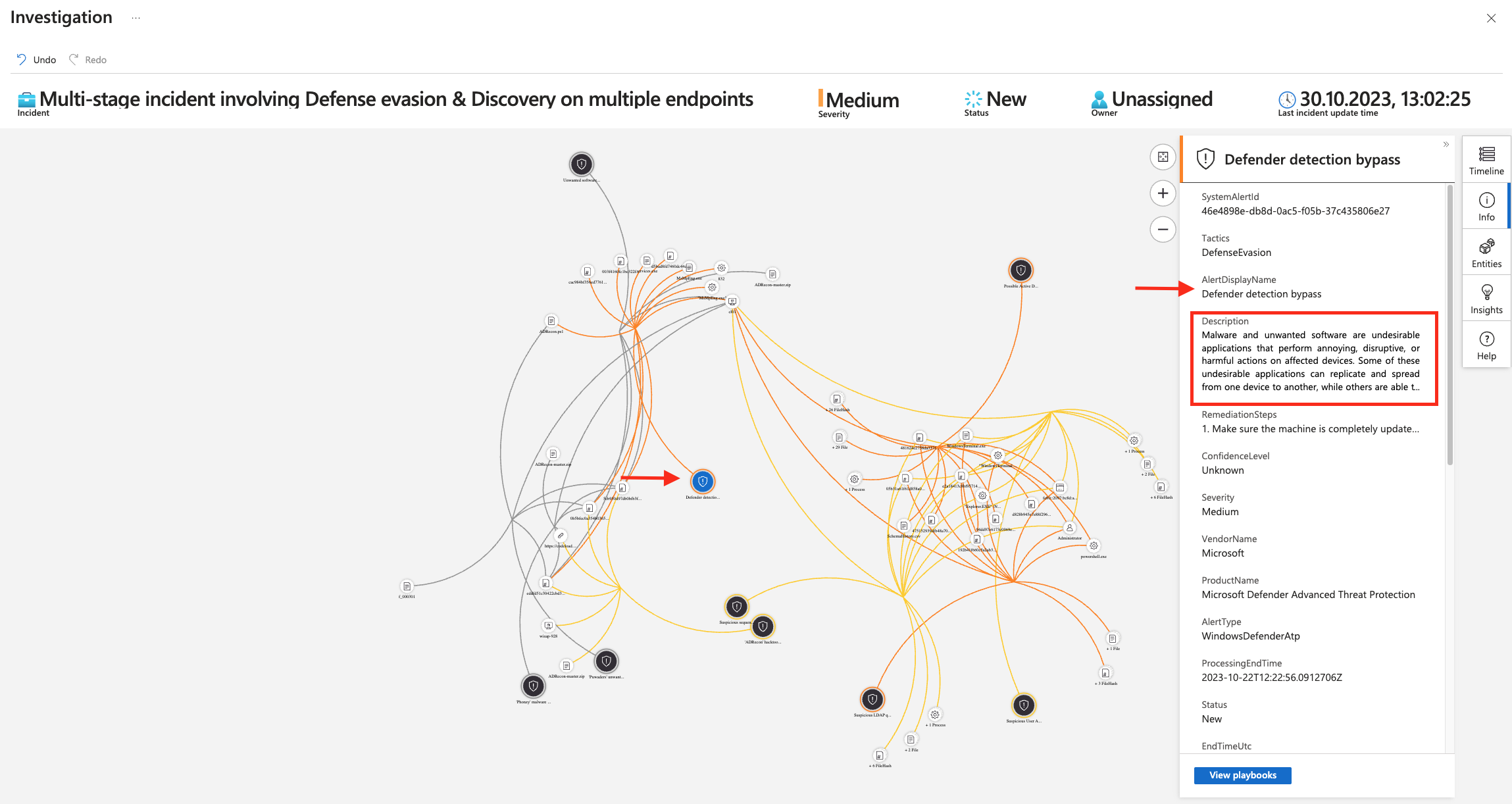
Now we have detailed information from the Microsoft client. The information was not collected just like that, but because there was a suspicion. Now we continue with advanced hunting in Microsoft Sentinel.
In Microsoft Sentinel, we can directly access the incidents from the overview.
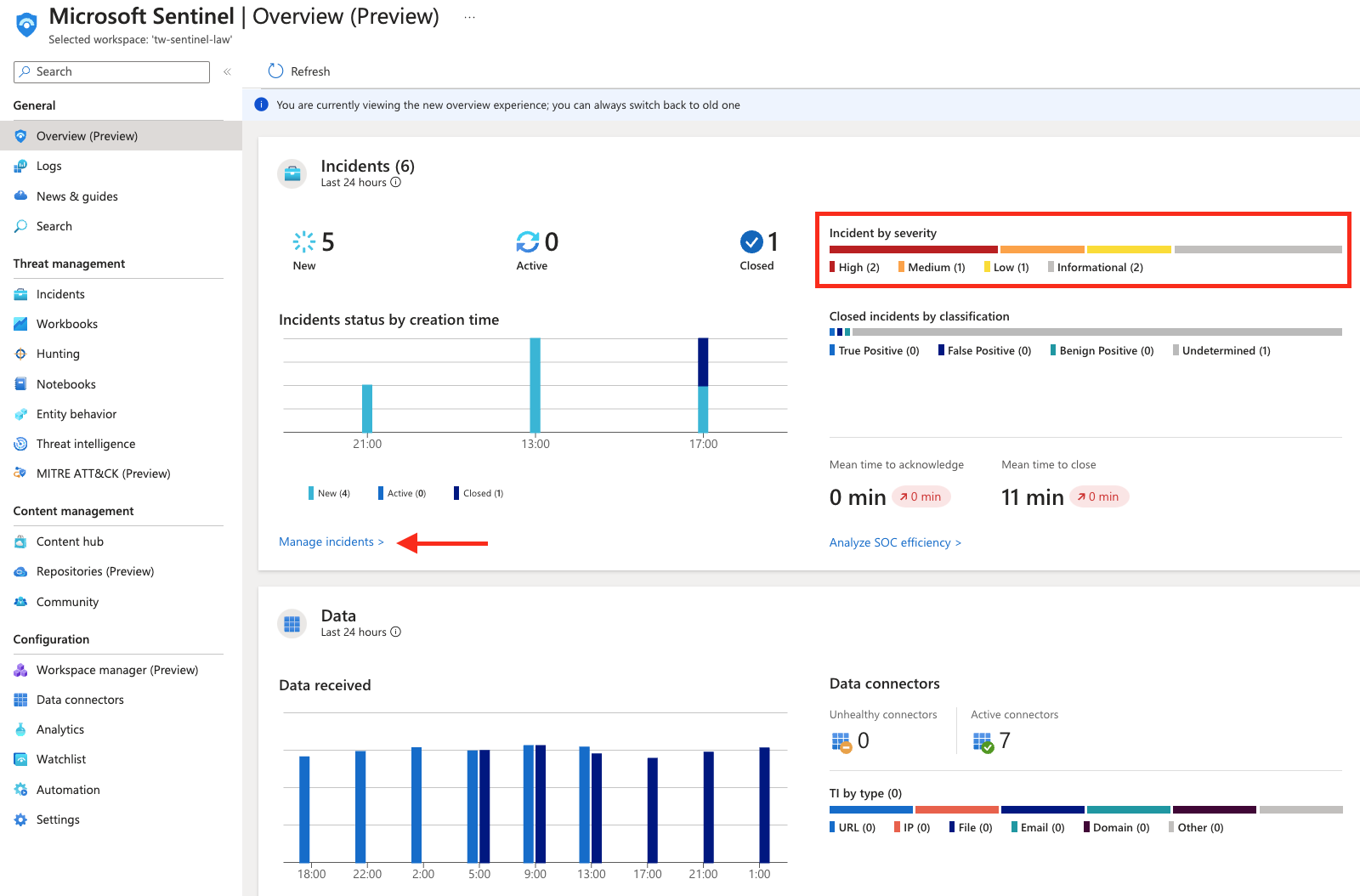
List of incidents 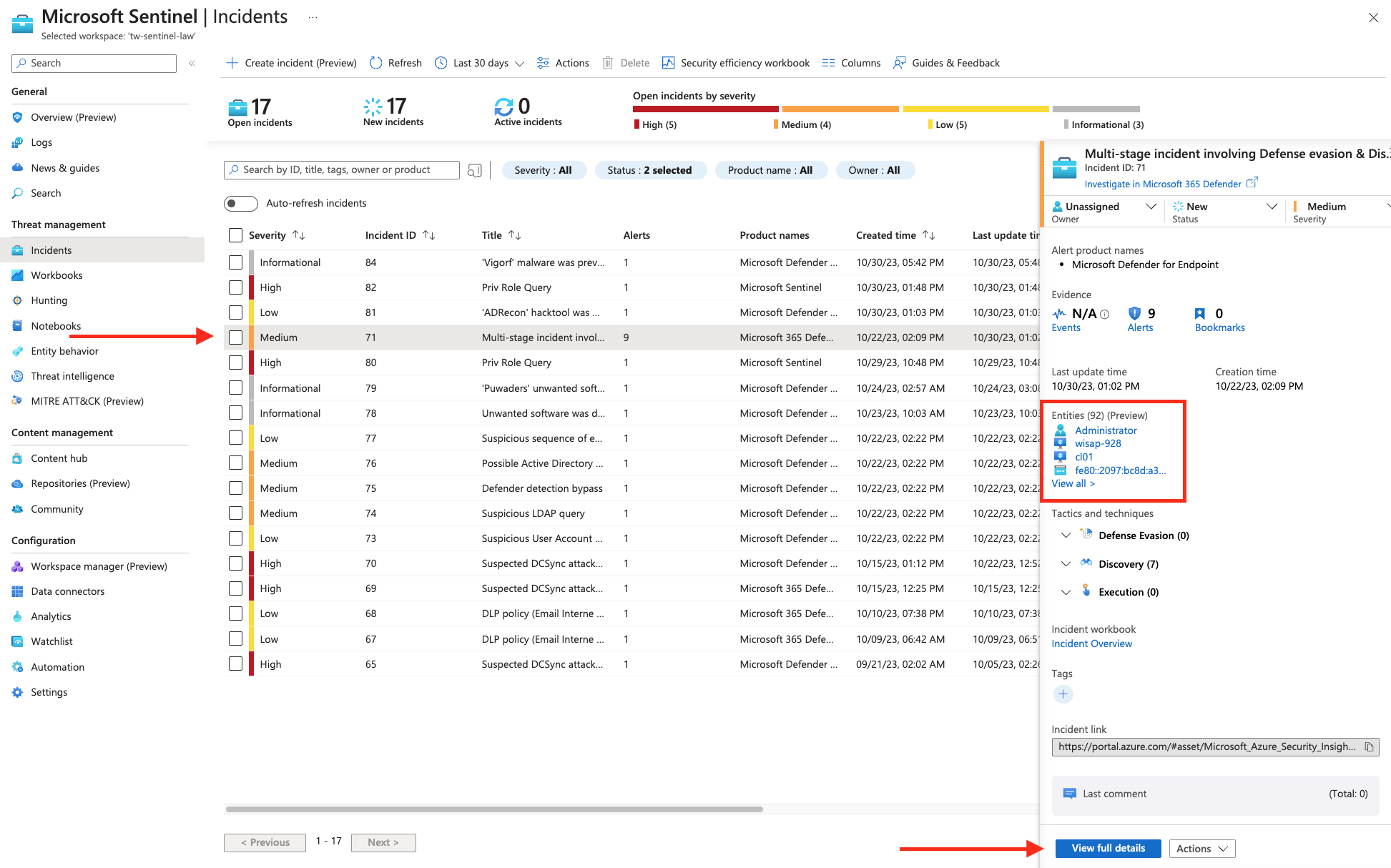
View full incident details 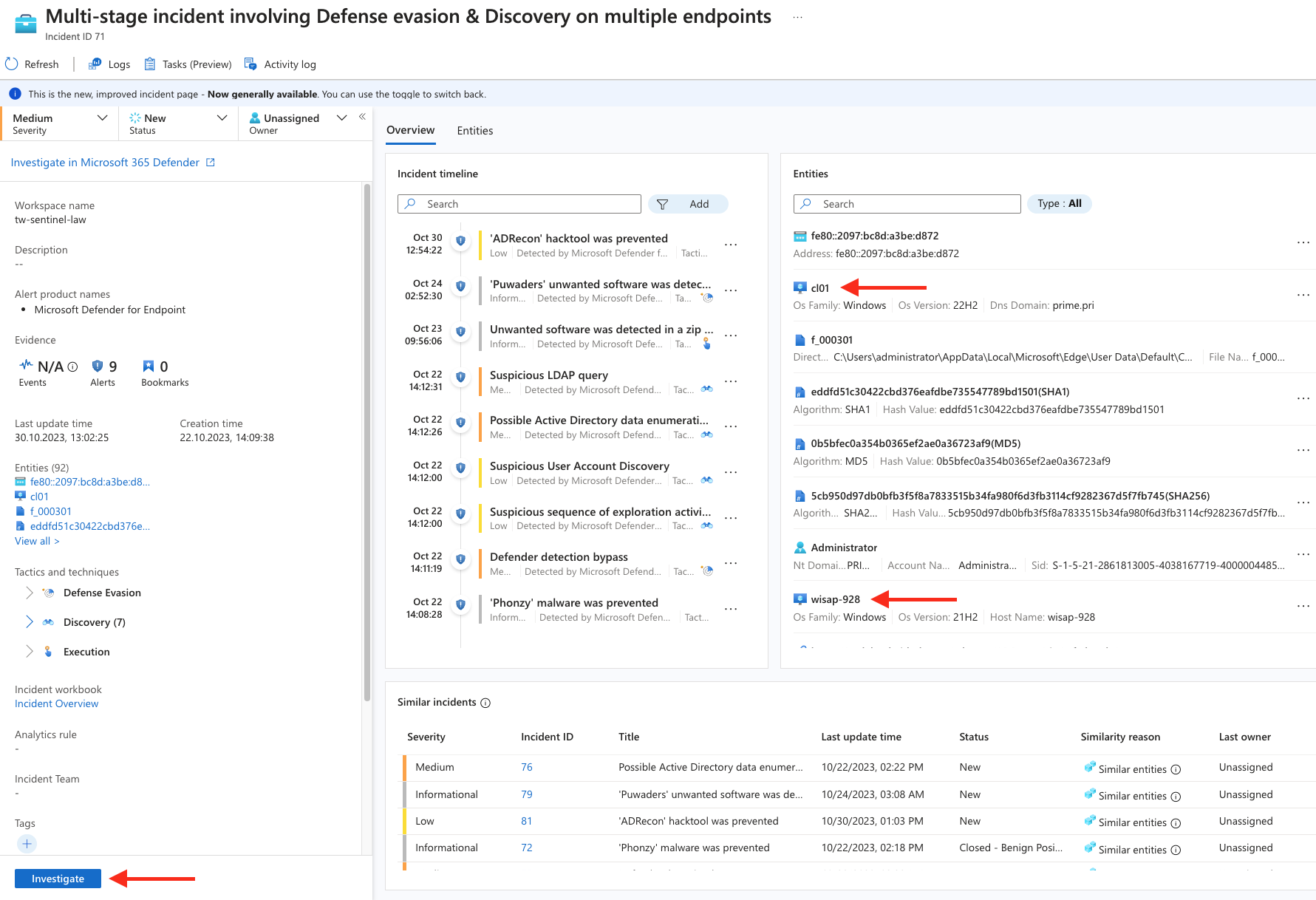
Now the deep dive into the incident 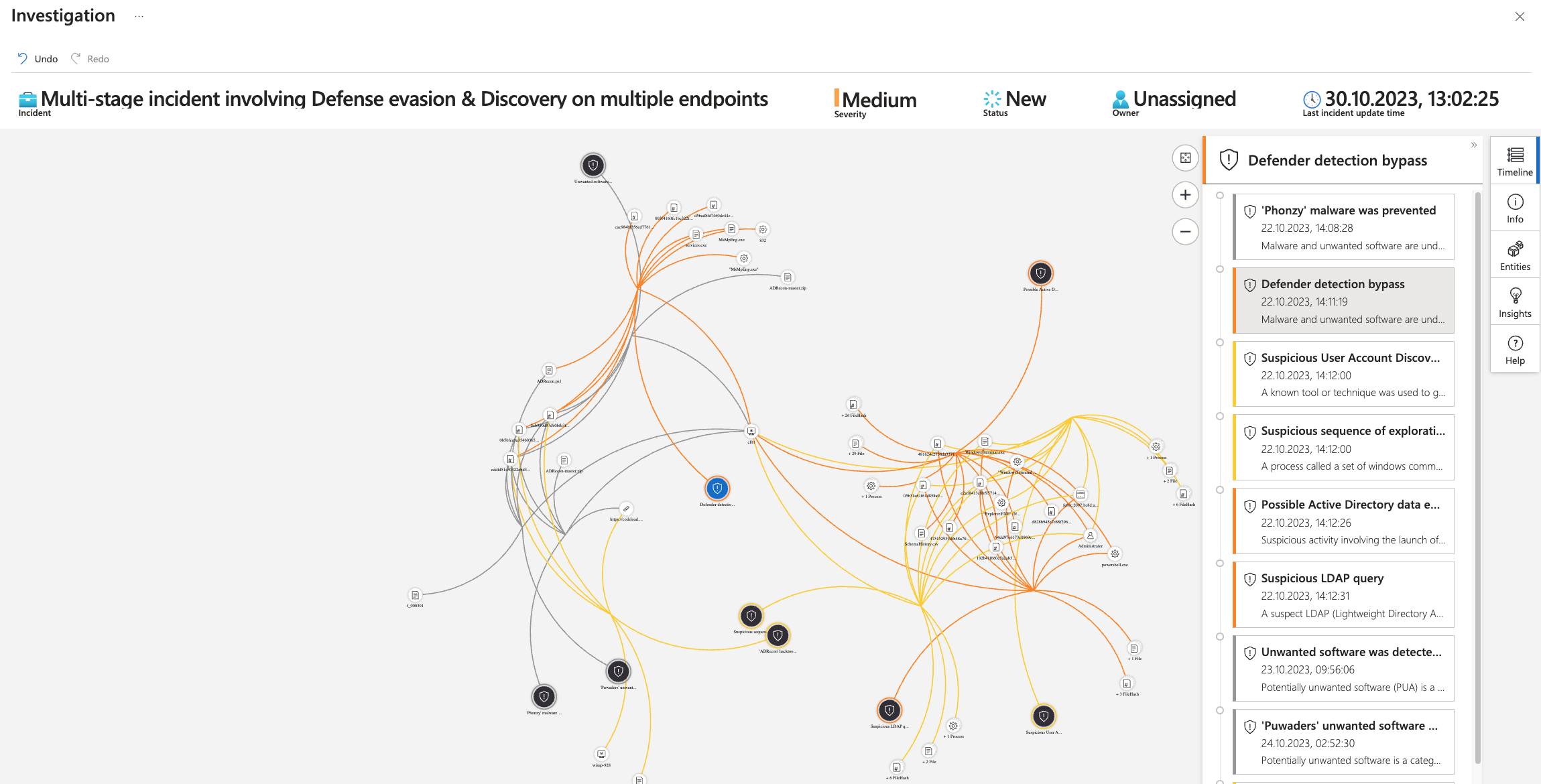
Investigate each incident